
Features in 0.8.1
What BetterSPICE does, area by area
Everything here is in the 0.8.1 beta of 17 November 2026 on Windows and Linux, and in 0.8.0 on macOS. Open a row for the detail and the section of the user manual that covers it.
No feature matches
The search covers the titles, the descriptions and the keys. The manual's A to Z index goes further.
01Live view
Runs while you draw
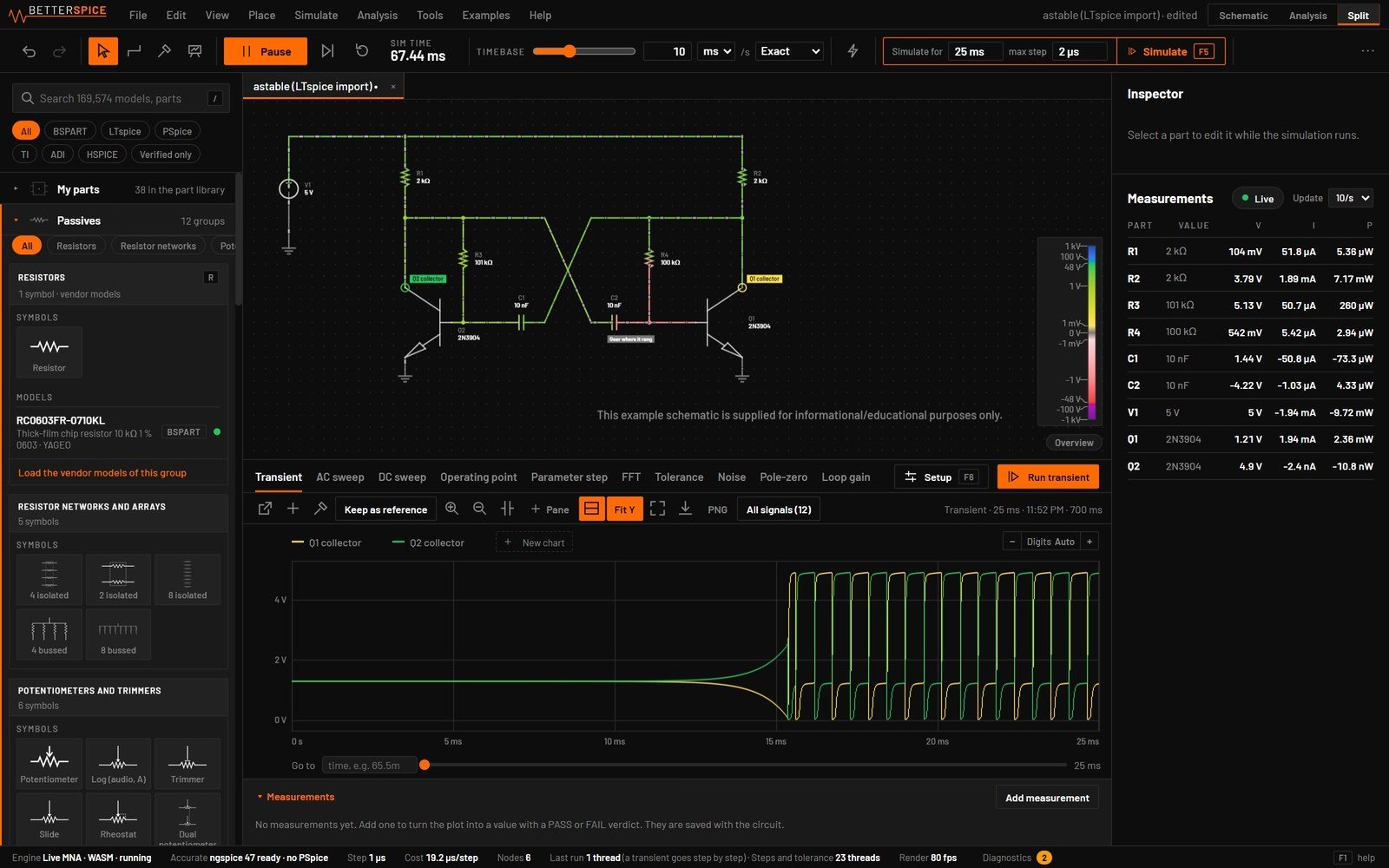
The circuit runs from the moment it has a source and a ground. Change a value and the waveforms follow, at a pace you can watch.
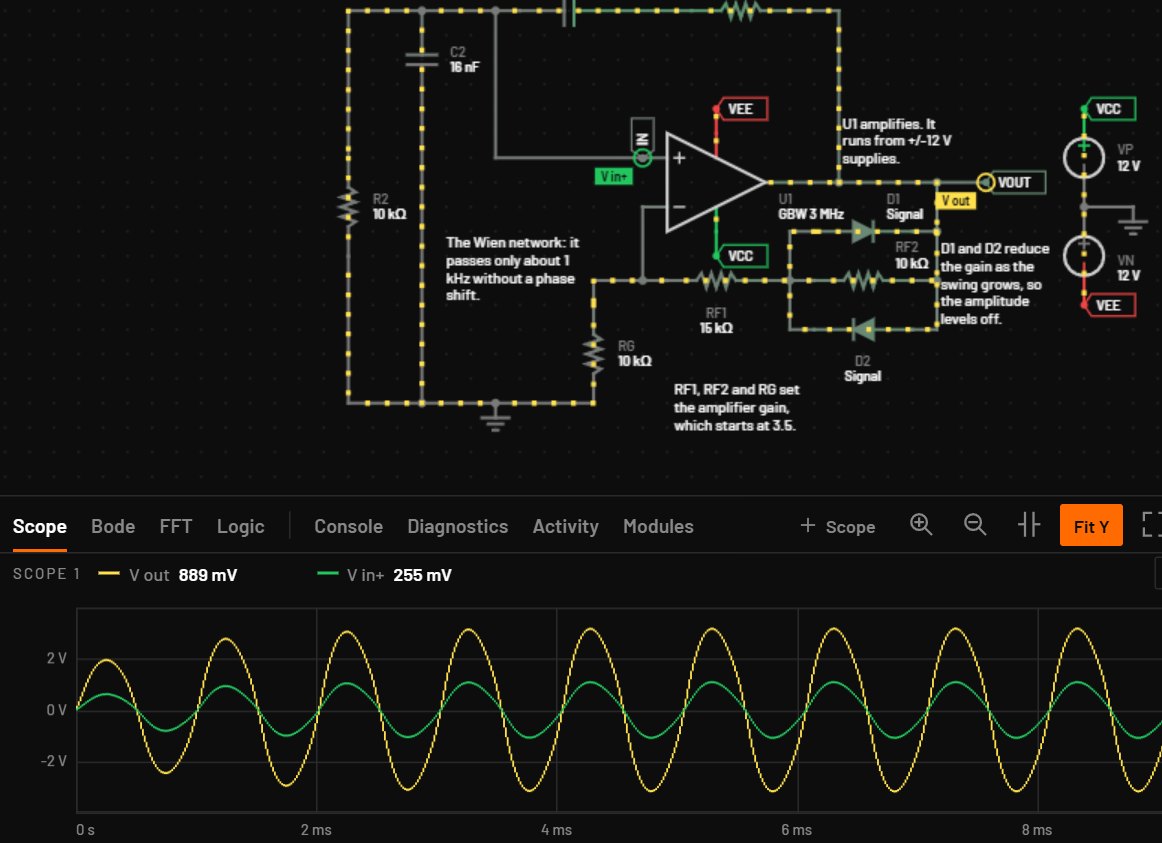
Starts by itselfRuns from the first source and ground. Nothing to set up.Manual 26.1
The live engine is written in Rust and compiled to WebAssembly. It solves the circuit with modified nodal analysis and Newton iteration, using ngspice's device equations.
Edit while it runsWaveforms follow a changed value.Manual 26.5
A capacitor keeps its voltage and an inductor its current through the edit. A dragged slider ramps the value in run time instead of jumping once per screen frame.
Timebase and speedKeys 1 to 4 set the timebase, Ctrl+R runs or pauses.Manual 26.3
A 50 Hz rectifier and a 1 MHz converter can both be watched at a pace you can follow. When a circuit is too heavy for the timebase, the toolbar says how fast it really runs.
Live qualityExact is the default. Balanced and Fast keep the timebase at reduced accuracy.Manual 26.4
Exact has a median error of 0.6 ppm, with 95 % of signals within 0.22 %. Balanced: 40 ppm and 0.53 %. Smooth node voltages on 118 example circuits, against a run at a 4x finer step. A banner shows whenever Balanced or Fast is on.
One engine with SimulateAt the same step, 860 of 871 signals on 118 examples are identical to the last bit.Manual 26.19
The other 11 are within 0.07 parts per million of their range. The test suite checks the live view against Simulate, and the native engine against WebAssembly, on every example: about 6,350 checks.
Wire colour and currentOne voltage scale from 1 mV to 1 kV. Current dots grow into dashes.Manual 26.16
The same voltage always has the same colour, and a lighter wire always means a smaller voltage. Dots only race for large currents. View > Live look switches back to Classic.
Readings under the pointerPoint at a pin for its voltage, current and the part's power.Manual 26.15
A slim legend shows the voltage scale and marks the wire under the pointer.
Energy viewPower on the wires, and a ledger of losses that must balance.Manual 26.8
Bands of power on the wires, the parts that give and take power, and a ledger of input, output, losses and efficiency.
Tolerance bandShades the range each scope trace takes at the ends of the parts' tolerances.Manual 26.9
Off by default, under View > Tolerance band. Extra live engines, one for each corner and each in its own worker, follow every edit. The scope label says how many corners it ran.
Big boards100 parts or more run on the native engine in the desktop app.Manual 26.10
On a 578-part board that is about 1.4 times as fast as WebAssembly, with the same frames bit for bit. The status bar then reads Live MNA · native.
Scope and dockUp to 144 frames a second on the Windows app at 1600 x 1000.Manual 27.5
Bode, FFT, Logic, Console and Diagnostics tabs sit in the dock. A circuit without probes gets its key nets suggested once, with Add these and Not now.
Fallback engineWhere WebAssembly isn't available, a JavaScript engine runs every part type.Manual 26.18
It uses the same device equations.
02Simulate and analyses
Press F5 for the measured answer
Simulate runs the accurate analysis on the schematic in front of you. Every release is checked against ngspice, signal by signal.
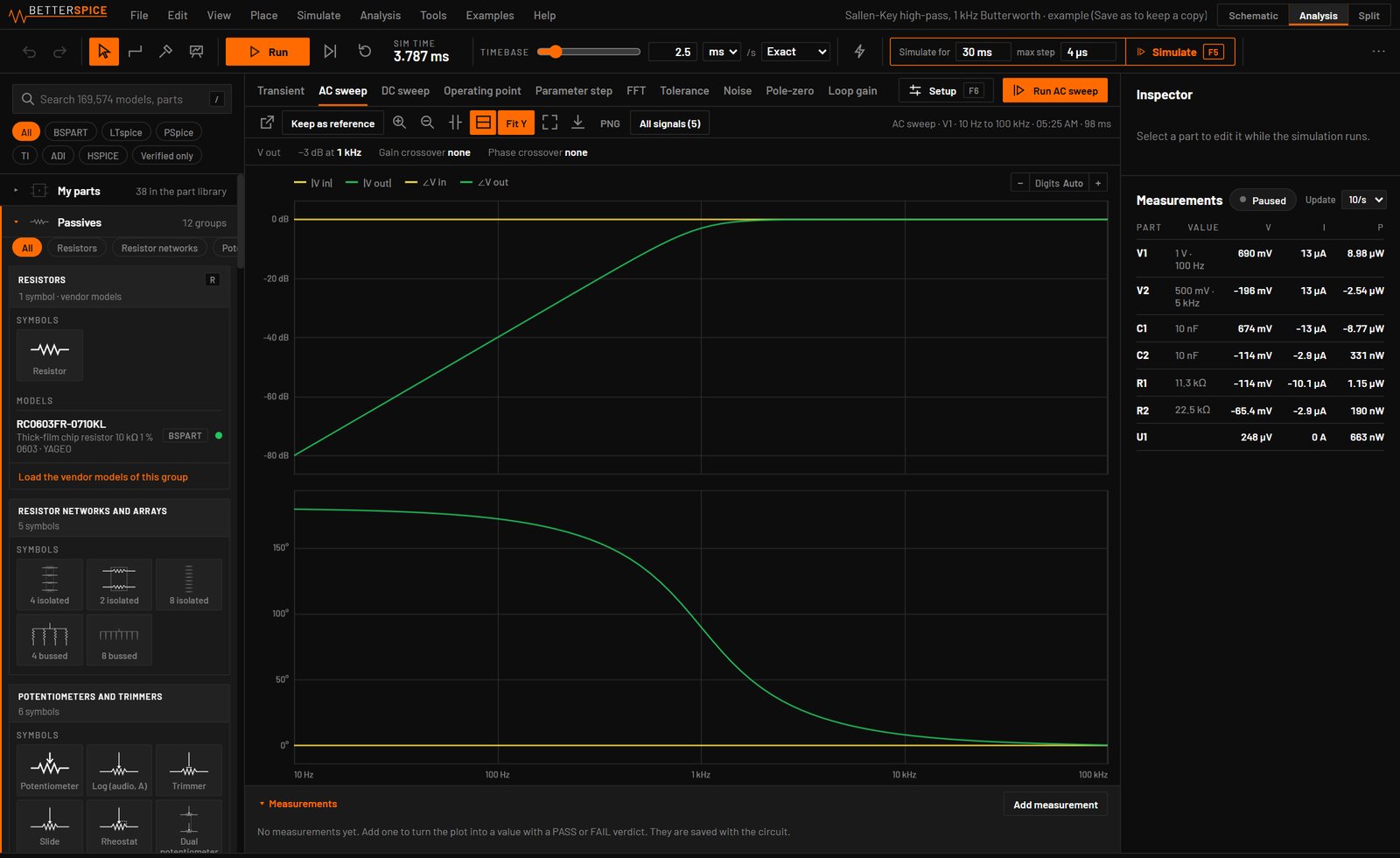
Transient, AC and operating pointF5, F7 and F9 on the schematic you have open.Manual 28.1
Results open with cursors for reading values off the plot. The Split view keeps the schematic above the plot, and Alt+click on a net adds its trace.
DC sweep, FFT and parameter stepBeside the three main analyses.Manual 29.4
Parameter step runs one analysis for each value of a part, such as one AC sweep per resistor value.
Noise, pole-zero and loop gainEach one checked against ngspice.Manual 29.9
Noise gives the output density, each part's share and the noise over a band. Pole-zero lists poles and zeros with frequency and Q. Loop gain gives crossover, phase margin and gain margin without breaking the loop.
Auto maximum stepPicked from the circuit's sources, edges, PWM and time constants.Manual 28.6
The setup shows the reason for the value it chose.
Oscillator start-up kickAn oscillator that sits exactly balanced is offered a kick.Manual 28.7
A perfect simulation can hold an oscillator still. Kick it once, or always kick oscillators.
Convergence rescueA run that doesn't converge is retried with other settings.Manual 28.9
A patient DC solve, a larger gmin, Gear-2 or a smaller step. A warning names the setting that worked.
Long runsSimulate says how long a run will take and how much data it holds.Manual 28.8
Every signal at every step is kept unless you choose Keep less. A 2.4 GB run of 12 million steps takes about a minute.
Plots on the graphics cardWebGL2, up to 144 frames a second with 100 traces.Manual 30.8
View > Plot drawing picks Automatic, Graphics card or Processor. The processor takes over where the card is missing or fails.
DigitsReadouts from 3 to 9 significant digits, or Auto.Manual 30.10
It changes only what is shown. CSV export and Copy as table write every digit.
All signalsEvery net voltage and part current in one list you can filter.Manual 30.html
Click a row to plot it, or drag rows onto a chart. Hovering a row marks the net on the schematic.
The verification suite4,892 of 4,892 signals of 438 test circuits pass.Manual 76.1
3,797 of them against ngspice, the other 1,095 against a closed form or a datasheet window (0.8.0 run, 16 November 2026). The suite runs with
bspice verify verification/circuits.
03Measurements and tolerance
Limits, spread and a verdict
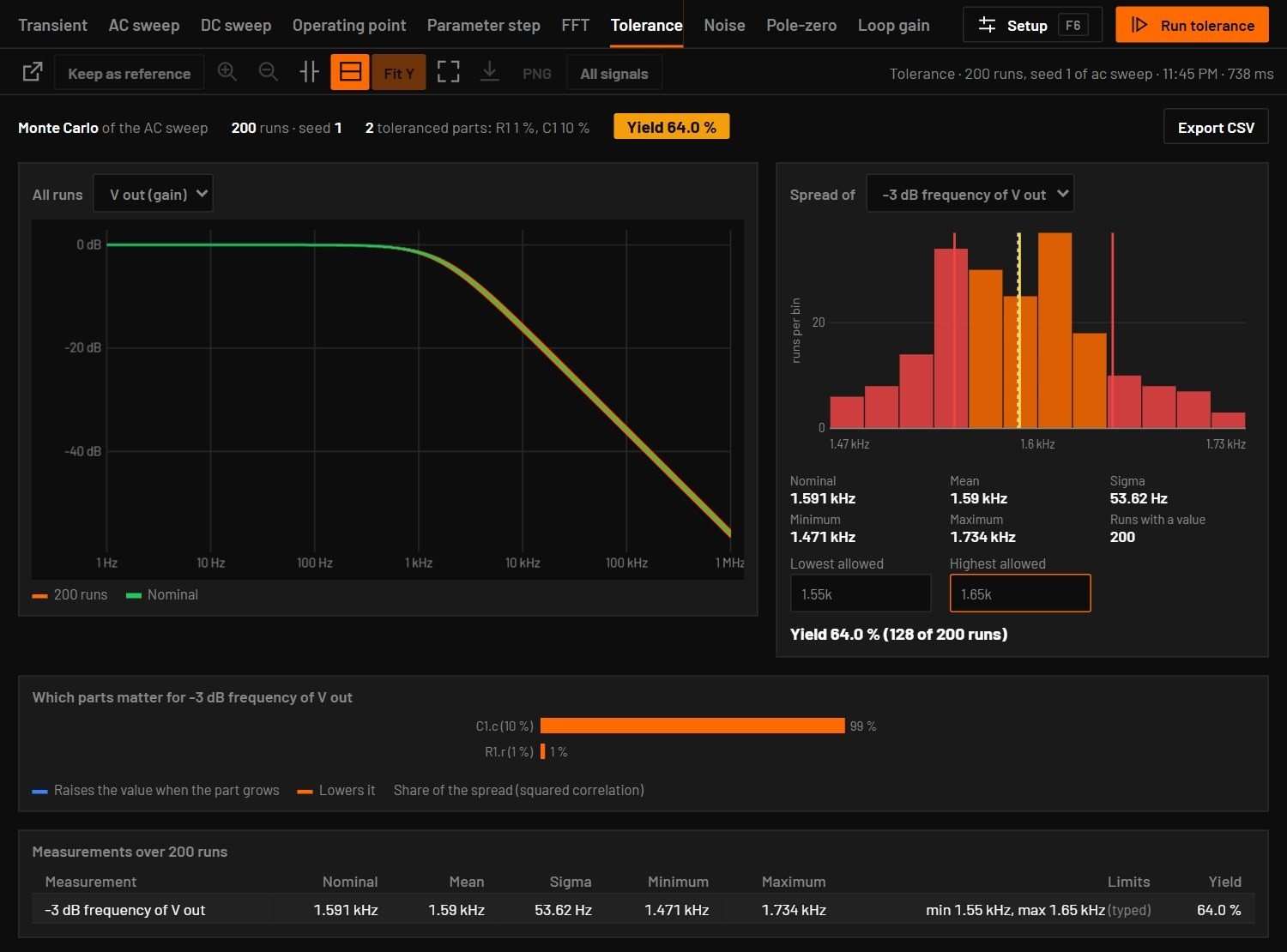
Measurements take limits and say PASS or FAIL after every run. Tolerance analysis shows what the spread of real parts does to them.
Named measurementsRise, fall, overshoot, settling, ripple, delay and more, each with limits.Manual 30.3
Also frequency, duty, RMS, efficiency, gain, −3 dB bandwidth, phase margin and gain margin. Each says PASS or FAIL after every run.
Tolerance analysisMonte Carlo or worst case on a transient, AC sweep, DC sweep or operating point.Manual 29.7
With a histogram, the share of builds inside the limits you type, and each part's share of the spread.
Default tolerancesResistors 1 %, capacitors 10 %, inductors 20 %.Manual 29.7
About 20 more kinds of part take a tolerance on the numbers a datasheet gives with one.
Keep as referenceAn earlier run, drawn dashed behind the next one.Manual 30.4
RatingsParts over their power, voltage or current rating are marked while the circuit runs.Manual 28.10
A 1/4 W resistor running at 1.2 W says so on the canvas.
ProbesVoltage, current or both, under a name of your own.Manual 27.4
The name and one stored colour follow the probe into the scope, every analysis, the measurements, the report and the agent tools.
Manual 27.4 A probe for voltage, current or bothPDF, page 196
FFT readoutsTHD, SNR, SINAD, SFDR and ENOB of the strongest tone.Manual 27.12
Window, averaging and units on the scope's FFT tab, with peaks and harmonics.
04Parts and models
169,574 vendor models, ready to assign
Search the catalog, compare models before you assign one, and make your own part from a datasheet when there is no model.
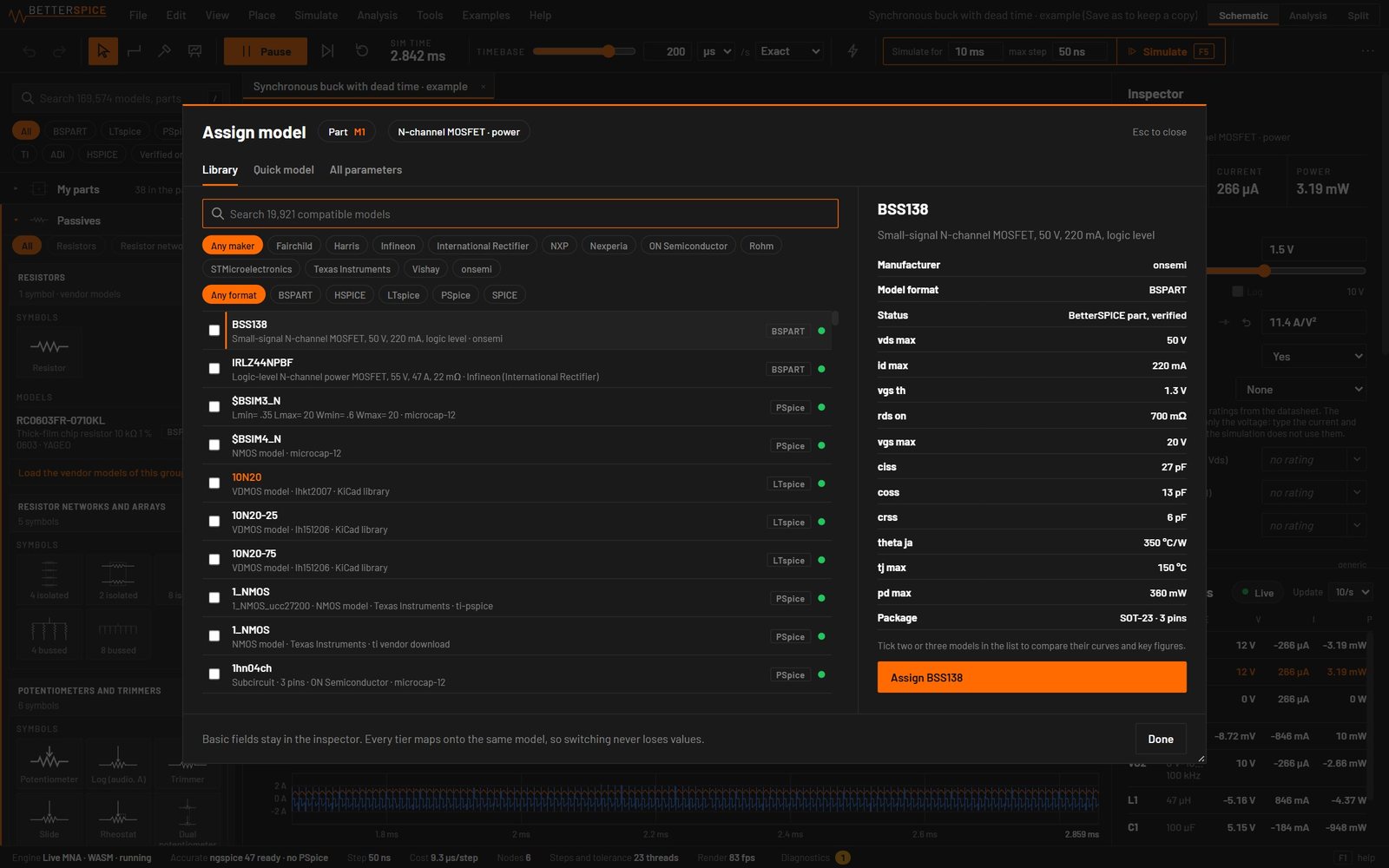
Vendor models169,574 from more than 70 manufacturers, run in ngspice 47.Manual 44.1
LTspice, PSpice and HSPICE dialects are converted on the way in. Models from several vendor libraries work side by side in one circuit, each library in a namespace of its own.
Library searchThe whole catalog, filtered by source or by verified models.Manual 24.1
Each family opens into groups with its symbols and vendor models apart, verified models first. Show all opens a group with its own search and maker filters.
Key figuresGain-bandwidth, slew rate, dropout, Rds(on) and more.Manual 45.3
Each figure says where it came from: measured on the model, fitted, read from the model card or taken from the datasheet.
Compare modelsTwo or three models' curves and key figures side by side.Manual 45.2
Before you assign one.
Manual 45.2 Compare models before you assign onePDF, page 411
Quick modelType the datasheet numbers and get fitted parameters beside them.Manual 45.6
For a part with no vendor model.
Part Wizard132 part types with 1,310 fields.Manual 46.html
Each type offers only the packages it comes in. The Curves step fits a model to a typed, pasted or digitized datasheet graph. It saves a
.bspartfile you can share.Datasheet curvesCapacitance against DC bias, inductance against current, and more.Manual 25.2
Battery voltage against charge, LED I-V and comparator delay against overdrive too, in a curve editor in the Inspector with a preview plot. Paste two columns from a spreadsheet.
Rails as sourcesA power flag with a voltage drives its net.Manual 32.16
Place +5V, +3.3V, +12V, −12V or −5V from the library, or give any flag a voltage in the Inspector. All flags of one name share one source.
FusesVery fast, fast and slow fuses and breakers follow their datasheets.Manual 36.2
A time-current curve and a melting I²t, a visible pop when one blows, and Replace fuse or Reset breaker on the part.
TransformersTurns ratios, leakage and magnetising inductance, and taps.Manual 31.6
Full packageThe library itself: 207,849 files, about 3 GB.Manual 75.1
It can be added to an App only install later.
05Microcontrollers
Code in the loop
The MCU part runs a program against real pin voltages, so a sagging rail shows up in its ADC readings.
PeripheralsGPIO, edge interrupts, ADC, DAC, PWM, timers, UART, I2C, SPI and CAN.Manual 42.1
An ADC reads the actual voltage on its pin against the actual supply.
Arduino-style code
pinMode,digitalWrite,analogRead,everyandon().Manual 42.18BetterSPICE's own small language. Pins can carry names of your own, such as
pin VOUT = PA0 analog 12bit, and the editor completes them.Manual 42.18 Arduino style, pin names and board namesPDF, page 390
Pin states on the symbolRed high, blue low, grey floating, orange PWM, green analog.Manual 42.20
BreakpointsThe whole circuit stops at that instant.Manual 42.21
Click a line number to set one. Step, Continue, Pause and a variables panel take you through the program, for one MCU or several.
Manual 42.21 Debugging: breakpoints, Step and VariablesPDF, page 391
ExportAn Arduino sketch or an STM32 HAL file as a starting point.Manual 42.22
What it doesn't doIt doesn't run compiled firmware.Manual 42.25
The manual lists what is emulated and what is not.
06Drawing and editing
Edits go where your hand put them
Parts land on the pointer and wires go where you drew them. 715 example circuits to start from.
PlacingSpace turns a part, Ctrl+E mirrors it.Manual 22.1
Paste, duplicate and new parts land centred on the pointer. A part keeps its turn when copied.
Manual 22.1 Placing partsPDF, page 139SpaceCtrlE
WiresA wire goes where you drew it.Manual 22.2
It joins the pins and wires it crosses.
Inspector and slidersValues in groups, a reset to the default, the arrow keys to nudge.Manual 25.html
Type numbers with units and prefixes, or drag a slider while the circuit runs.
Manual 25.html The inspector, values and slidersPDF, page 164
Hierarchical sheets and busesMake a sheet from a selection.Manual 23.1
A breadcrumb leads back to the parent.
Examples715 circuits in 40 categories.Manual 72.html
From a voltage divider to switching converters, PLLs and motor drives. Among them are 8 regulators on real vendor chips and 50 circuits that are usually built wrong, each with the right way beside the mistake.
ShortcutsEvery shortcut can be changed from the ? page.Manual 18.html
A key another command already has asks before it moves.
SessionsThe app starts where you left off.Manual 20.11
Saved files are read again from disk. File > Reopen the last session on start turns it off.
Screen sizeFits a 1024 x 640 window. Laid out for 1440 x 900 and up.Manual 75.7
07Import, export and sharing
Bring your schematics, take the results
Import KiCad, EasyEDA Pro and LTspice schematics. Share a running circuit as a link or a single file.
KiCad and EasyEDA ProKiCad 6 to 10 and EasyEDA Pro projects, with an import report.Manual 67.1
Files:
.kicad_sch,.kicad_pro,.epro,.eprjand.epro2. The report lists what matched and what needs you. A bare resistor value is read as ohms.LTspice schematics
.ascfiles with their symbols and the models they name.Manual 67.1Through File > Import or by dropping the file on the window. On LTspice's 61 example schematics the imported connections match LTspice's own netlists.
Share linkThe circuit in a web address, running in a browser viewer.Manual 68.4
With the scope, sliders and inspector. Nothing is uploaded.
Interactive HTMLViewer, engine and circuit in one file of about 6 MB.Manual 68.4
It opens by double-click.
ReportOne HTML page with every analysis you ran.Manual 68.3
The schematic, parts against their ratings, tolerance results, the spectrum and the diagnostics. The dialog can run the missing analyses first.
Netlist and dataAn ngspice netlist, CSV of every row of a result, and images.Manual 68.2
08Agents and command line
An agent on the same schematic
Connect Claude Code or another MCP client to the circuit you have open, or script the same tools from the shell.
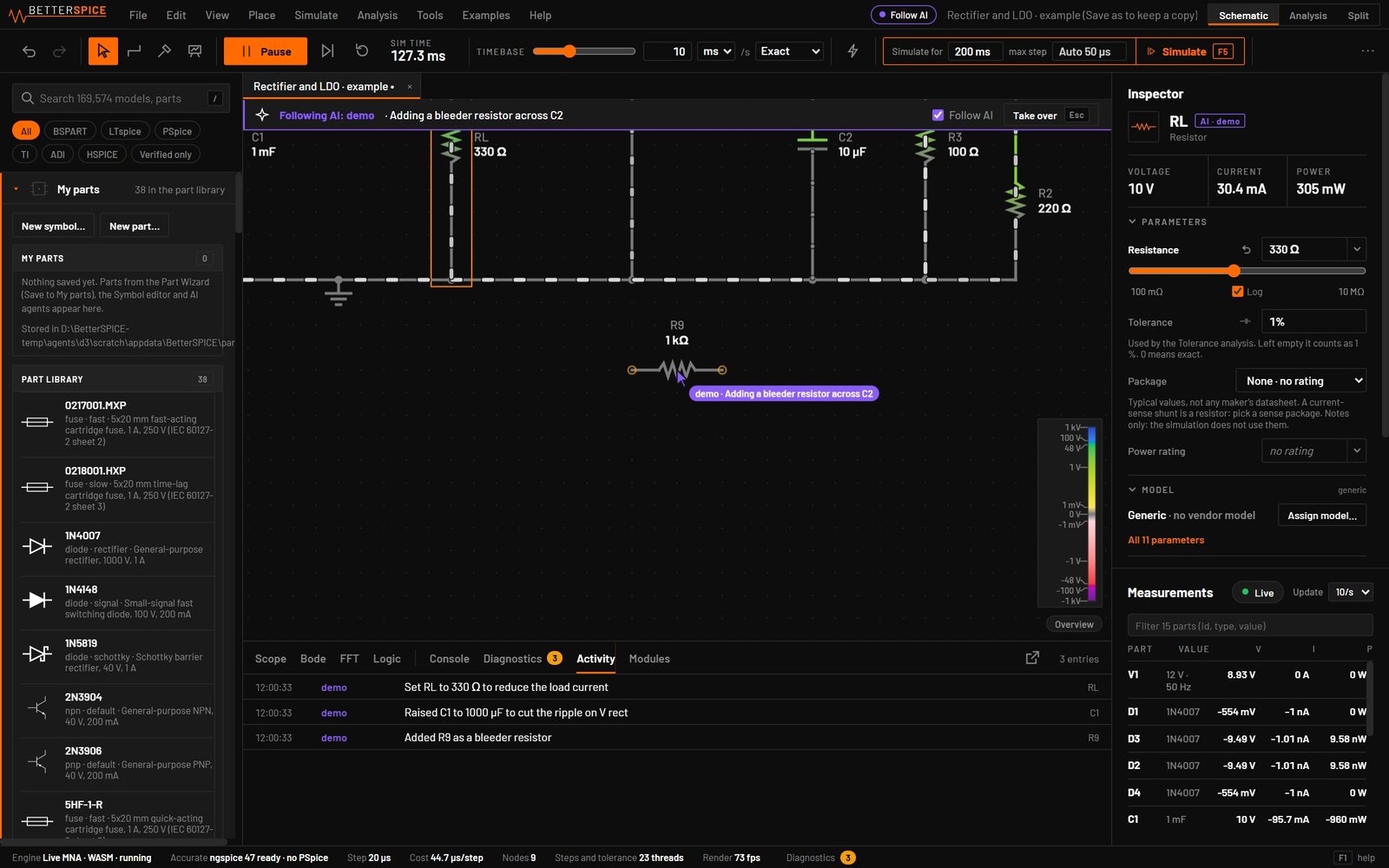
MCP
bspice mcpconnects Claude Code or another MCP client.Manual 70.1The agent edits the circuit you have open. The top bar says what it is doing, its cursor marks the part, and the Activity tab logs each edit.
Shell
bspice apphas one command for each agent tool, with JSON output.Manual 71.2For example
bspice app add-part res --at 10,0.bspice app helplists them all.Headless
validate,op,tran,ac,dc,report,verify,importandexport-spice.Manual 71.2They work on files, with no window.
Drawing rulesLibrary symbols, real part numbers, wires between parts and no shorts.Manual 70.3
An edit that breaks a rule is refused with the fix, and
check_drawingruns the same check on any file.Safe for scripts
E_MEMORYrefuses a run that wouldn't fit,--timeoutstops one in time.Manual 70.5No command writes over the circuit it reads, and
bspice app --filelocks the file for each edit.
09Calculators
Work it out, then place it and run it
17 calculators from Ctrl+Shift+C, each with a Simple and an Advanced view. Each can place the circuit it worked out and run the analysis that checks it.
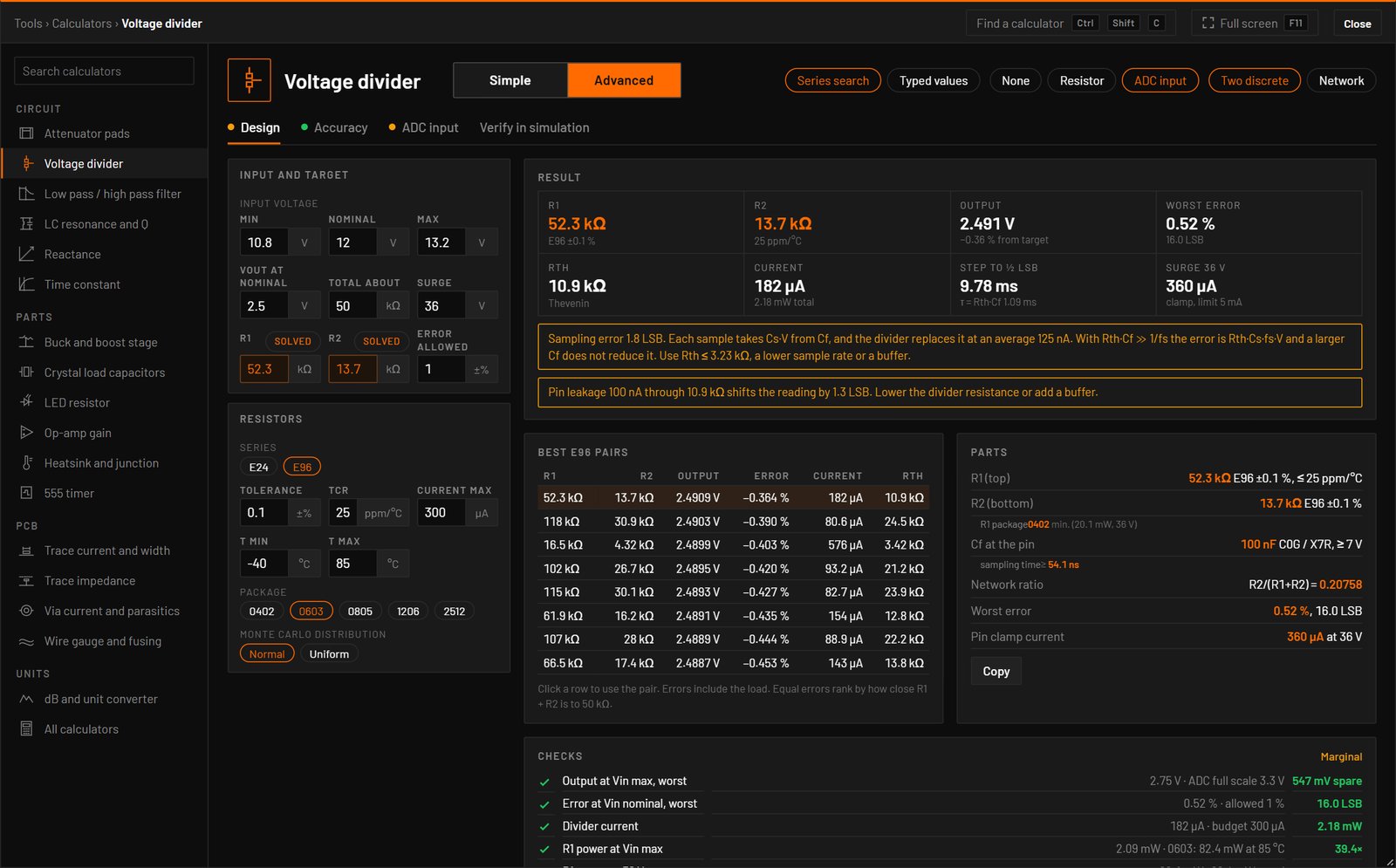
17 calculatorsDivider, filters, LC, reactance, time constant, pads, LED, op-amp, 555, buck and boost, crystal, heatsink, trace, via, impedance, wire, dB.Manual 48.2
Type a word such as filter, led, via or dB and press Enter. The Advanced view adds tabs with plots, design checks and a bill of materials, and F11 fills the screen. Try all 17 in the browser.
Manual 48.2 The calculatorsPDF, page 442CtrlShiftC
From the selectionWith parts selected, the picker offers the calculators that fit them.Manual 48.2
Place and checkPlaces the circuit it worked out, with its source and probes, runs it and checks every measurement.Manual 48.9
Measurements compare the run with the calculator. A calculator can also write its values into the parts you selected. Each is one undo step.
Manual 48.9 Placing the circuit and applying valuesPDF, page 449
PCB calculatorsIPC-2221 and IPC-2152 for traces, with vias, impedance and wire gauge.Manual 61.html
Differential impedance is the IPC-2141A estimate, and the window says it isn't a field solver.
Six of the calculators also work in this site, with the formulas of the app.