
Guide
Simulate your KiCad schematic live
BetterSPICE opens a KiCad 6, 7, 8, 9 or 10 schematic as it is: the parts, the wiring, the labels and the sheets, and runs it with every wire coloured by its voltage. This guide goes through it step by step, with pictures from the real app.
BetterSPICE beta 0.8.1, 18 November 2026. The example is the small KiCad 8 test project in the BetterSPICE source: a 10 V source, a 10 kΩ divider and a 10 kΩ load on a sub-sheet.
-
Check the file
BetterSPICE reads
.kicad_sch,.kicad_proand a.zipof the project folder, from KiCad 6 to KiCad 10. KiCad 5.schfiles are not read: open them in KiCad 6 or newer and save once.If the design has sub-sheets, use a
.zipof the project folder. A.kicad_schdropped on its own cannot bring its sub-sheet files with it, and the report then says which file is missing (E_IMPORT_MISSING). -
Import it
Choose File > Import KiCad / EasyEDA / LTspice… (Ctrl I), or the Import button on the toolbar, and pick the file. Dropping the file on the window does the same. The circuit opens in a new tab and the Import report opens over it.
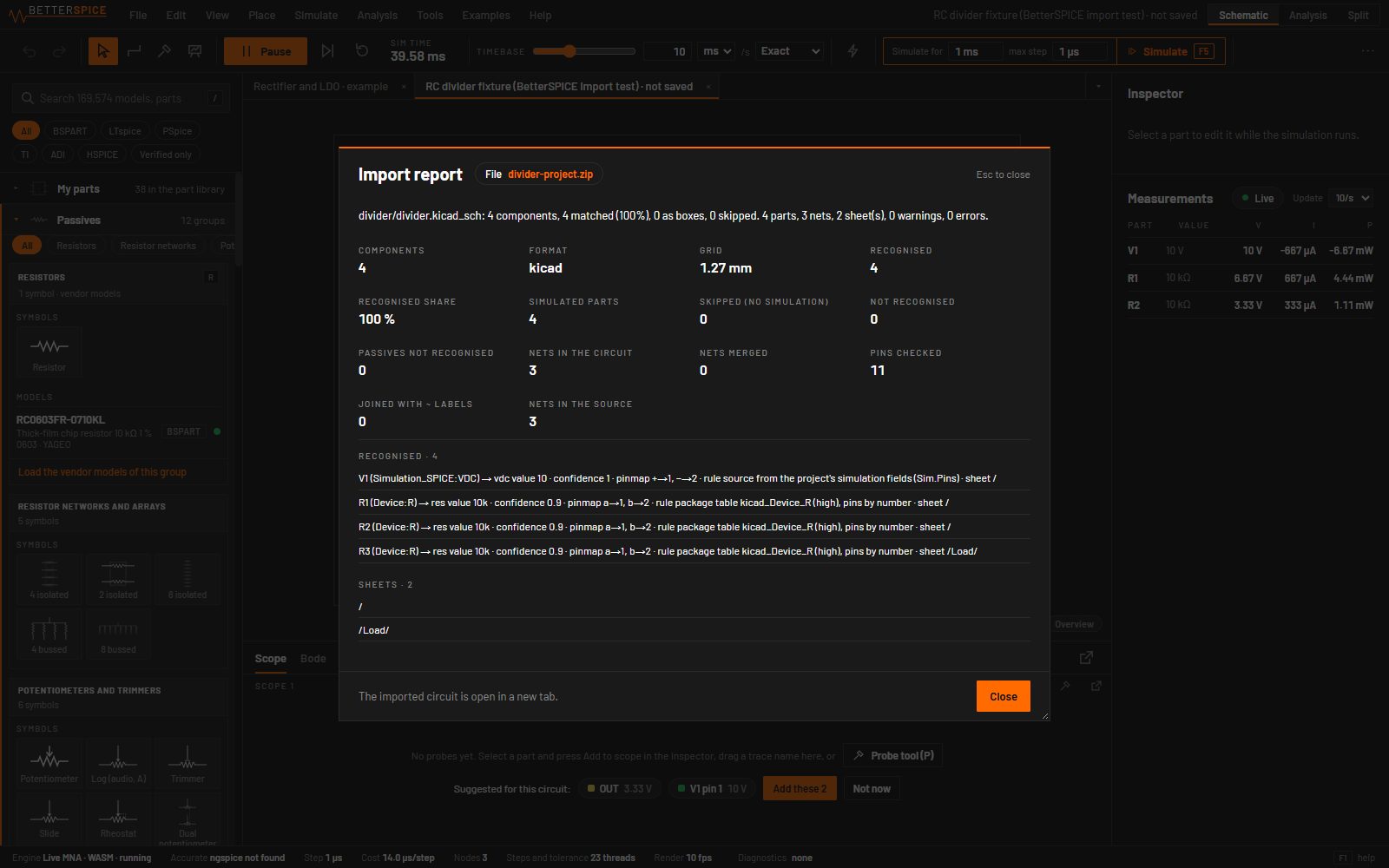
The Import report of the example: 4 of 4 parts recognised, 2 sheets, 11 pins checked against KiCad's nets, no warnings or errors. -
Read the report
The report checks the import against the source: every net must keep the same pins as in KiCad. It lists:
- Recognised parts, each with the device it became, its value, the confidence, the pin map and the rule that matched it.
- Not recognised parts, kept as boxes with all their pins so the drawing stays complete, each with an Assign model… button.
- Skipped parts that have no electrical meaning, such as logos and mounting holes.
- Warnings and errors with their codes and the fix.
A row that names a part is a link: a click selects it and zooms to it. File > Import report… opens the report again later.
-
Give it a supply
A schematic often shows its supplies only as power flags. The importer adds a DC source for each rail named like a voltage, such as
+5V,3V3orVCC_12V, that nothing drives, and warns that it did. A circuit with no source at all runs at 0 V and gets the diagnosticW_NO_SOURCE: place a DC source on the supply net.A source with KiCad simulation fields comes in as it is: the example's
Simulation_SPICE:VDCwithSim.Paramsdc=10became a 10 V source. -
Assign models where they matter
Resistors, capacitors, inductors, diodes, transistors, op-amps, regulators and many other parts are matched by their library name, value and reference. An IC the importer does not know stays a box until you give it a model. Select the part and press Ctrl M, double-click it, or use Assign model… in the report. The dialog lists the models that fit the part; click one, then Assign.
A part that names a vendor model in the KiCad project keeps it for Simulate.
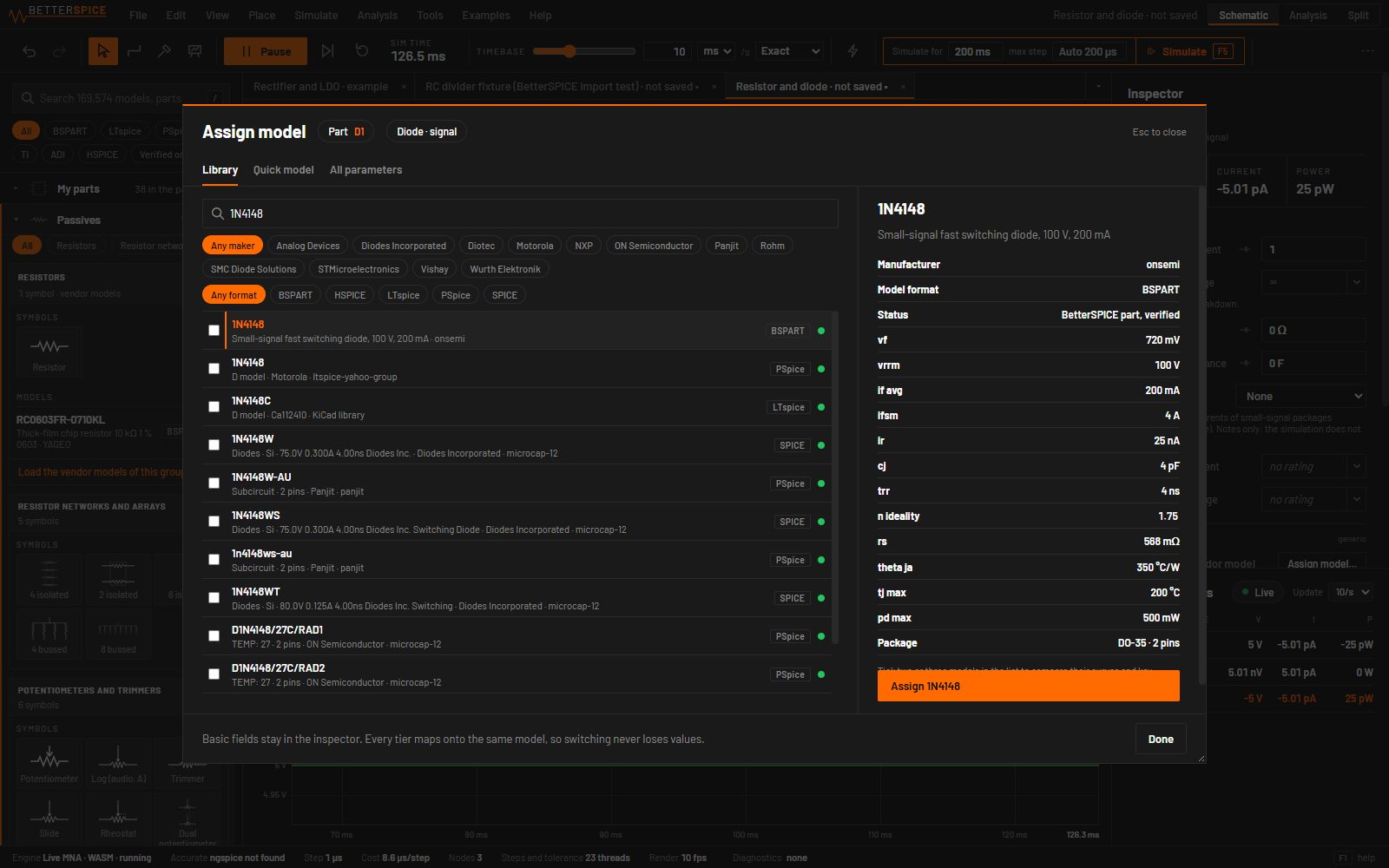
Assign model on the diode of another KiCad test schematic: the search lists the 1N4148 models in the library, with the key figures of the selected one. -
Watch it run
The imported circuit runs in the live view: wire colours follow the voltage, and holding the pointer over a wire or a part shows its live voltage and current. The app suggests probes for the scope; take them, or select a part and add it. The example's output sits at 3.33 V, the 10 V divided by 10 kΩ over 10 kΩ in parallel with the 10 kΩ load.
Press F5 for the full analysis on the same schematic. A KiCad
.trantext directive comes in as the simulation settings.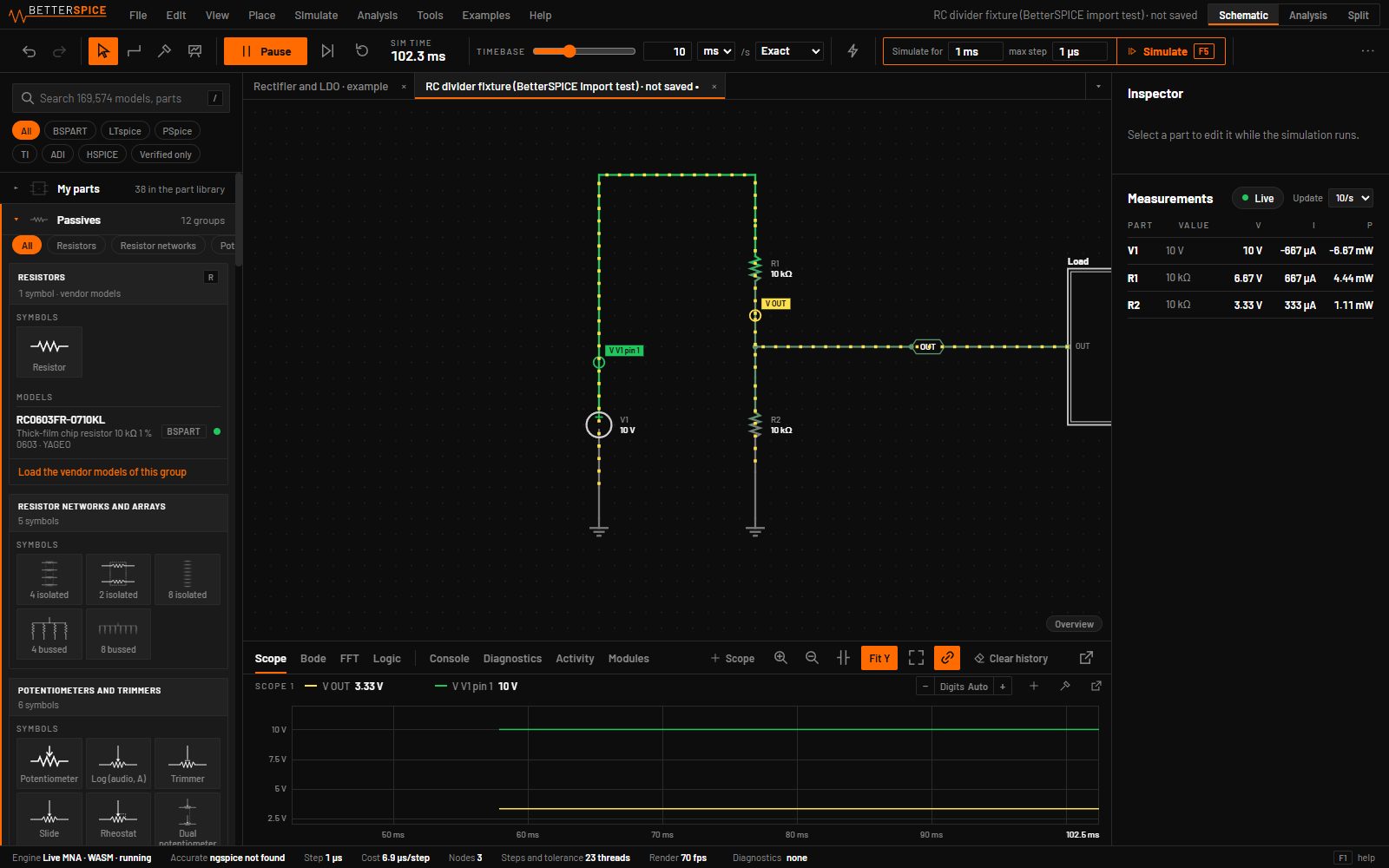
The example running live: the load sub-sheet is the box on the right, the scope shows V1 at 10 V and the output at 3.33 V.
What the importer maps
- KiCad simulation fields:
Sim.Device,Sim.Type,Sim.Pins,Sim.Params,Sim.LibraryandSim.Name, and the olderSpice_*fields. Sources, R, C and L values, and diodes, BJTs, MOSFETs and JFETs with their pin order. - SPICE subcircuits named in the project, with the library file and the pin order.
- Parts by name and value: passives, crystals, diodes, zeners, LEDs, transistors, op-amps, comparators, 555s, references, LDOs, gate drivers, optocouplers, relays, 74xx and 4000 logic, connectors and more.
- Connectivity as KiCad has it: wires, junctions, local, global and hierarchical labels, power symbols, sheets and buses, checked against
kicad-cli. - The drawing: text, lines, the page frame and the title block.
What it doesn't do yet
- Large ICs come in as boxes ordered by the source's sides, not drawn like the KiCad symbol.
- A board import draws completely, but ICs without a model leave their nets undetermined. Assign models to the ICs that matter.
- BetterSPICE's symbols differ from KiCad's. Pins that don't line up get short stub wires or a pair of labels.
- Differential-pair and net-class directives, text variables and alternate pin functions are ignored.
- KiCad 5
.schfiles are not read.
In the October 2026 check on 33 KiCad projects, the imported netlists were identical to kicad-cli sch export netlist on every pin, and 96.6 % of the components were matched. The rest were MCUs, PHYs, memories and other ICs, imported as boxes.
From the command line
$ bspice import board.kicad_sch --out board.bsc --report report.jsonprints the summary, the parts that were not recognised and any errors, then writes the circuit. --flat writes one flat sheet and --no-supplies adds no sources. The exit code is 1 when the import check found an error. More in the manual: Importing KiCad and EasyEDA Pro.
Coming from LTspice?
LTspice .asc schematics import the same way. BetterSPICE vs LTspice compares the two.